
The Administrator Dashboard allows you to manage outlet information for RAKAN stores. Follow the steps below to add or edit outlet details.
Store updates are synced from the main site, rakanda.my. After a store is updated, it will be reflected on the site after one day.
Deleting a store from this dashboard will not affect the main site rakanda.my. Deletions are local and do not sync with the main site.
Please ensure that you fill in the details properly when adding a store, as incorrect or incomplete information may cause delays in the update process.
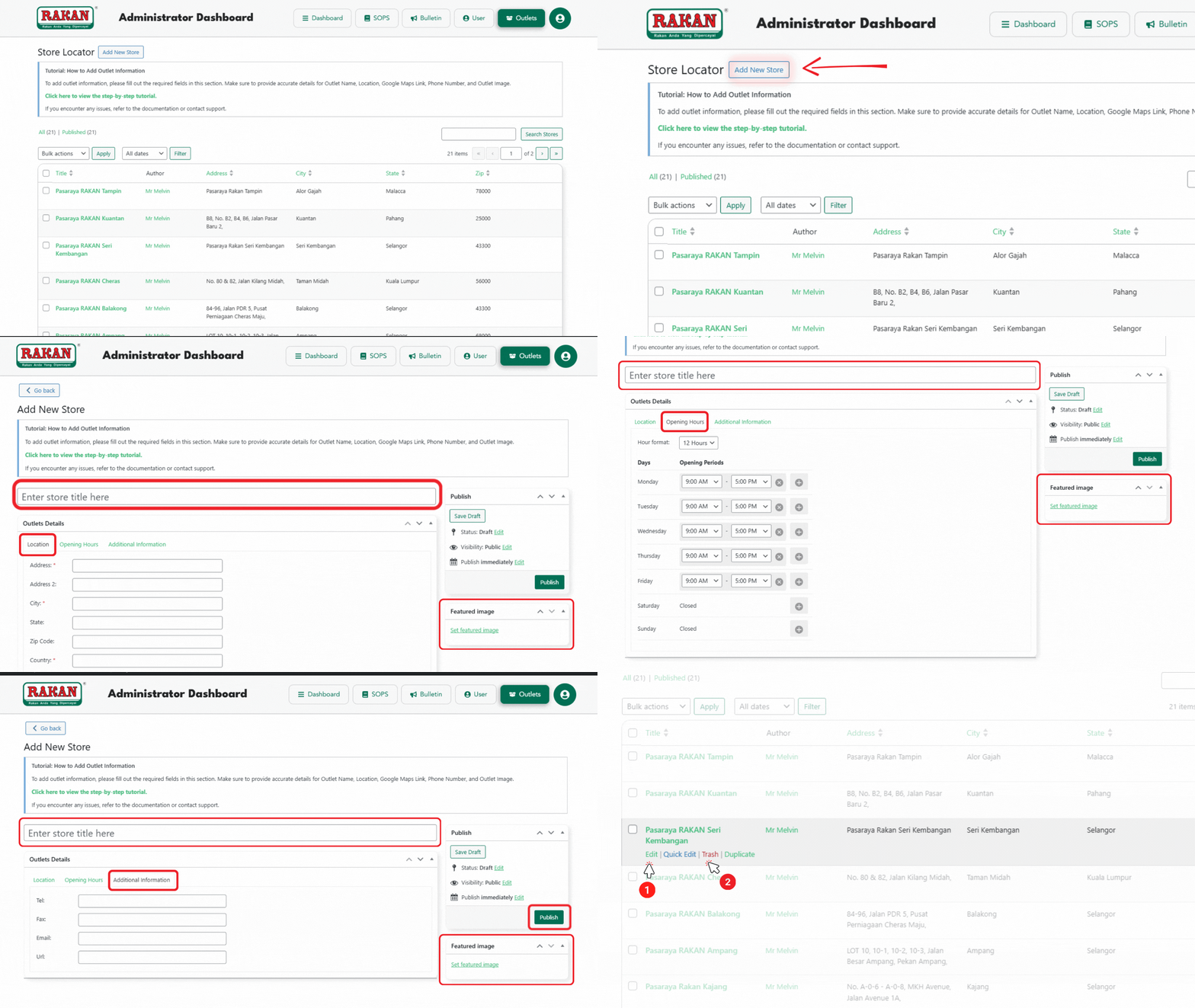
1. Accessing the Outlet Management Page
- Navigate to the Outlets tab in the main menu of the Dashboard.
2. Adding a New Outlet
To add a new outlet, click on the Add New Store button.
Field Details:
- Store Title: Enter the name of the outlet.
- Location Tab: This section contains necessary details for the outlet’s location.
- Address: Enter the primary address of the outlet.
- Address 2: Optional secondary address (if applicable).
- City: Enter the city where the outlet is located.
- State: Specify the state of the outlet.
- Zip Code: Enter the correct zip code for the outlet.
- Country: Select the country where the outlet is located.
- Latitude & Longitude: Add the geographical coordinates to help display the outlet’s location on a map.
Opening Hours Tab:
- This section allows the user to add the operational hours for the outlet. For each day of the week, provide the opening and closing times.
Additional Information Tab:
- Phone Number: Add the outlet’s contact phone number.
- Fax: If available, include the fax number.
- Email: Provide the outlet’s email address.
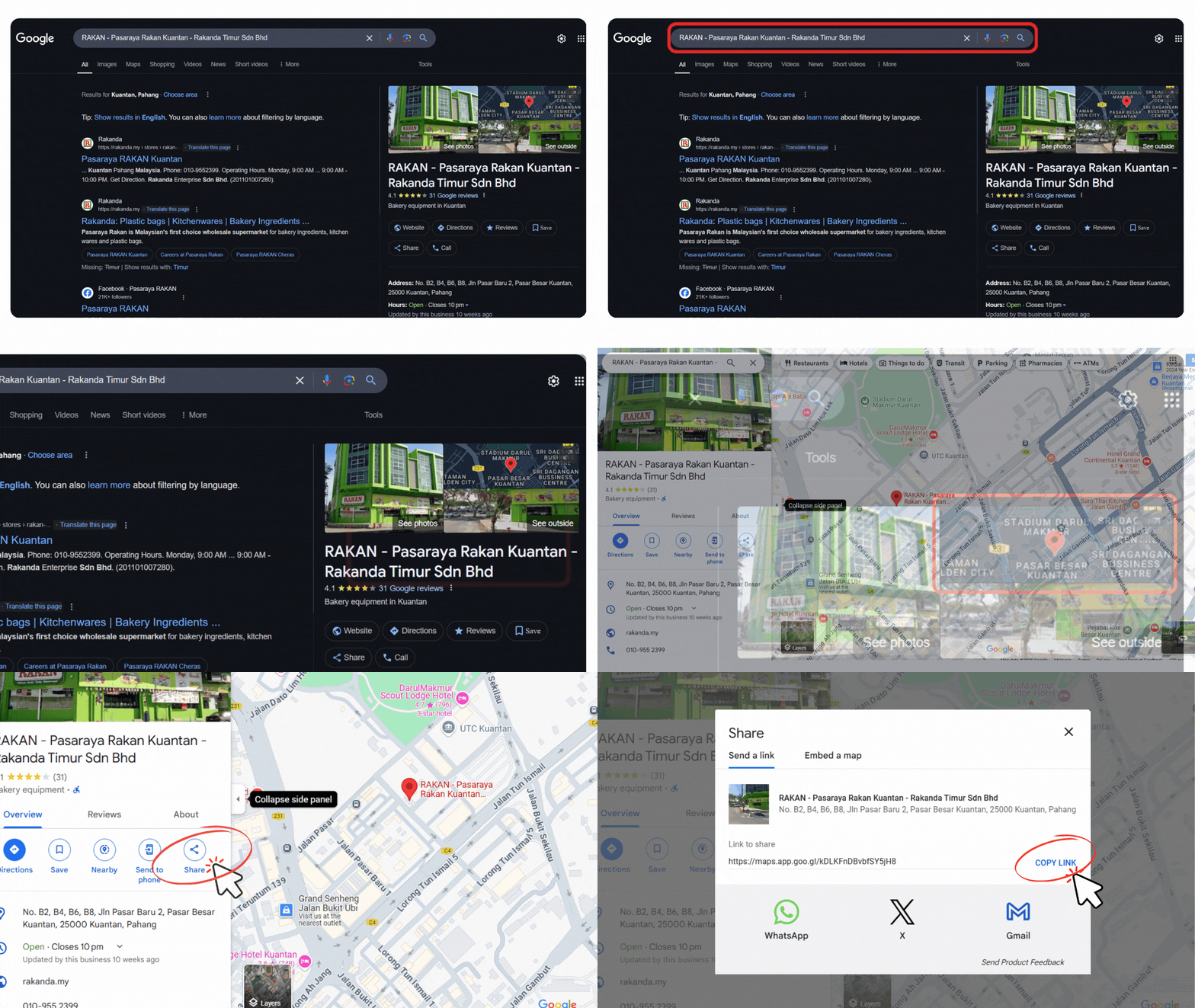
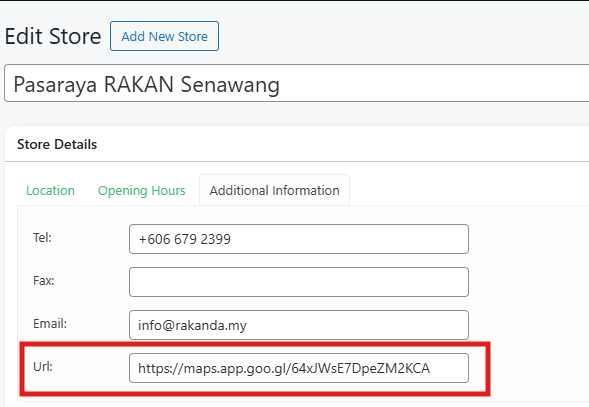
- Google Maps URL: Enter the URL of the Google Maps Outlets.
- 1. Go to Google and Search for RAKAN Outlet Name
Open Google and search for the RAKAN outlet, e.g., “Pasaraya RAKAN Kuantan.” - 2. Click on the Mini Map on the Sidebar
On the search results page, locate the mini map on the sidebar that shows the business location. - 3. View RAKAN Details
You will see detailed information about the RAKAN outlet, including the address, phone number, reviews, and more. - 4. Click on the ‘Share’ Button
To share the location, click on the Share button (shown in the image) next to the business details. - 5. Copy the Google Maps Link
A window will pop up with a URL. Click on Copy Link to copy the Google Maps URL. - 6. Go to Outlets Directory on RAKAN Team Portal
Open the RAKAN Team Portal and navigate to the Outlets directory section. - 7. Paste the Google Maps Link
Paste the copied Google Maps link into Outlet Directory RAKAN Team Portal.
- 1. Go to Google and Search for RAKAN Outlet Name
3. Publishing the Outlet
- Once all the required fields are filled, you can publish the outlet by clicking the Publish button under the Publish section.
- If you want to save the outlet as a draft and edit it later, you can click the Save Draft button.
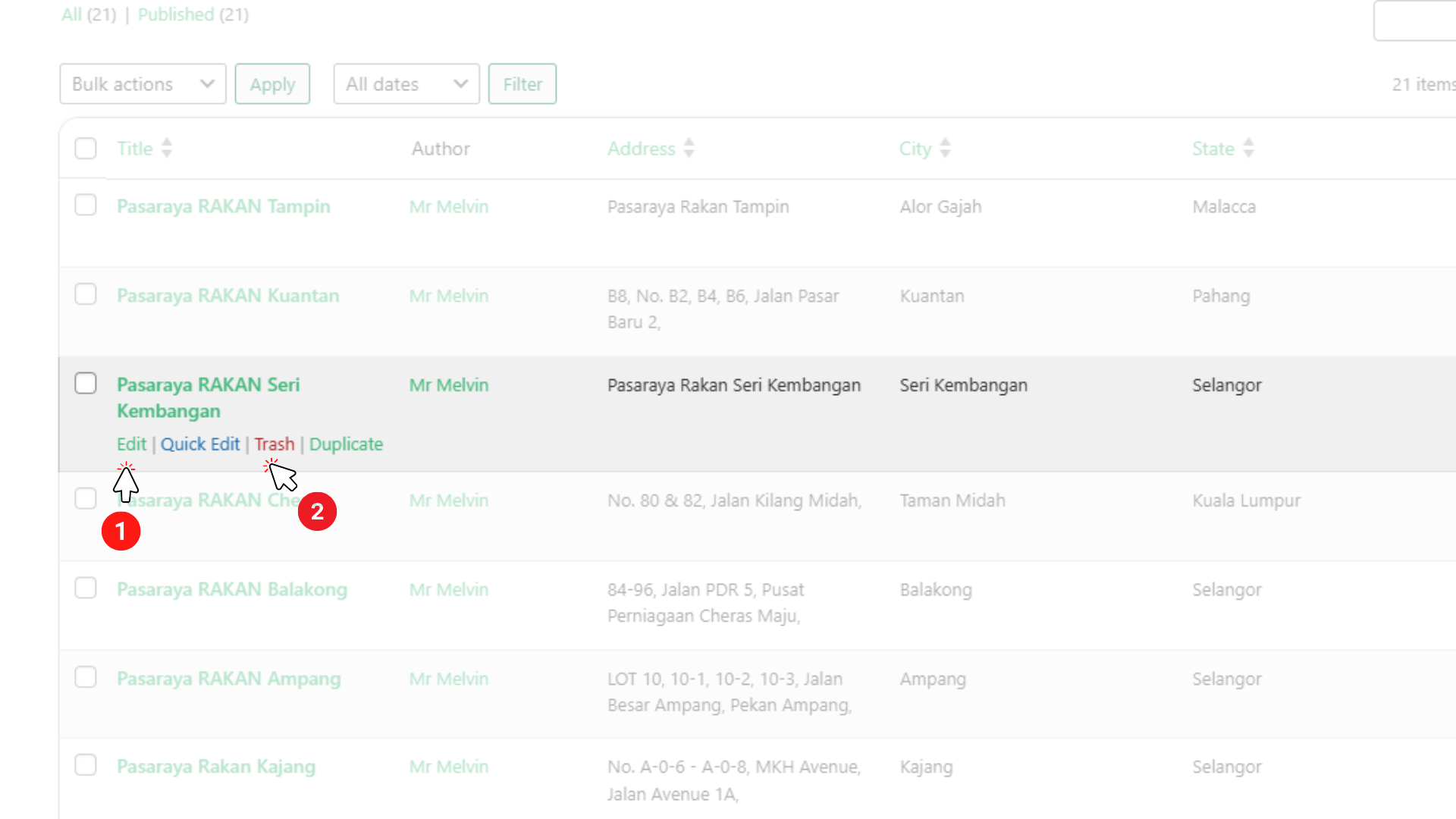
4. Editing an Outlet
- From the outlet list, find the outlet you want to edit.
- Click on the outlet title to open the outlet details.
- Make any necessary changes and click Publish when ready.
5. Viewing Outlets List
- The Outlets section on the dashboard displays a list of all outlets.
- Title: Displays the outlet name.
- Author: The user who created or edited the outlet information.
- Address, City, State, Zip Code: Key location information.
- Status: Indicates whether the outlet is published or a draft.
- Actions: Includes options to edit, view, or delete the outlet.
Tips:
- Ensure that the outlet’s Google Maps link is added to make navigation easier for customers.
- Keep the outlet details updated for accurate contact information.
Troubleshooting:
“Update Outlet” Button Not Responding
- Ensure all required fields are filled.
- Check for any browser connectivity issues.
Outlet Information Not Saving
- Confirm that you clicked the Update Outlet button.
- Ensure you have the necessary admin permissions.
Images Not Uploading
- Verify that the image file size is within the allowed limit.
- Ensure the file format is supported (e.g., JPG, PNG).
Additional Notes
- The Outlet Directory does not limit the number of entries.
- This page is for administrative use only and is not visible to regular users.