
Overview
Use this guide to manage support agents who handle tickets in Ticket Management. You will learn how to open the Support Staff page, add a new agent, edit an existing agent, and remove (delete) an agent. A quick reference for each permission is also provided.
Where this fits: This doc complements the Support Agent user guide. It focuses on administrator actions (adding, editing, removing agents and controlling their permissions & inbox access).
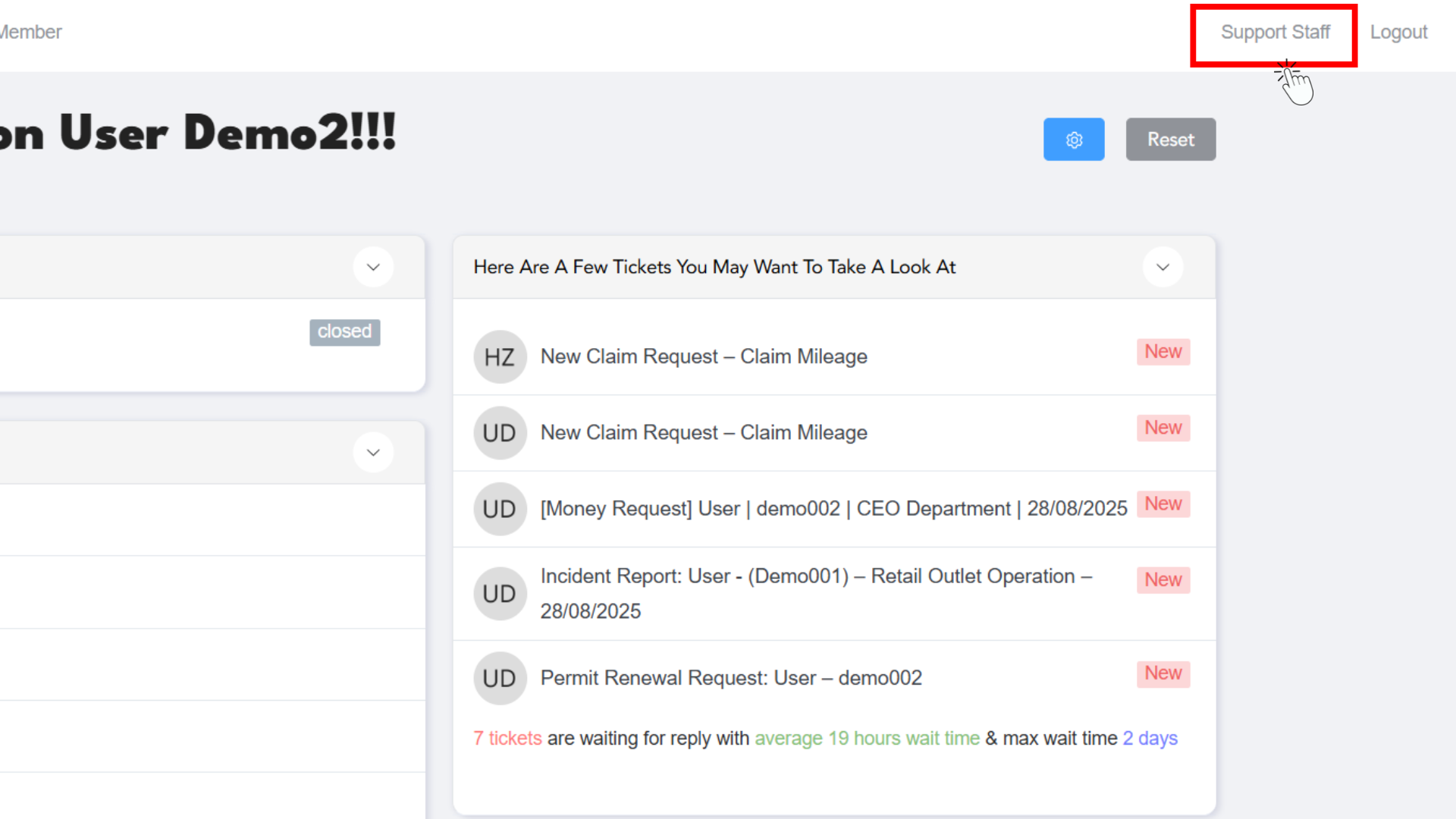
1. Open the Support Staff Page
- Go to Dashboard → Ticket Management.
- Click Support Staff in the top-right navigation or from the Ticket Management navbar.
- You will see the Support Staff list with columns for ID, Avatar, Name, Title, Permissions, Replies, Interactions, and Actions.
Tip: Use the Search Agents field to quickly find a staff member by name or email.
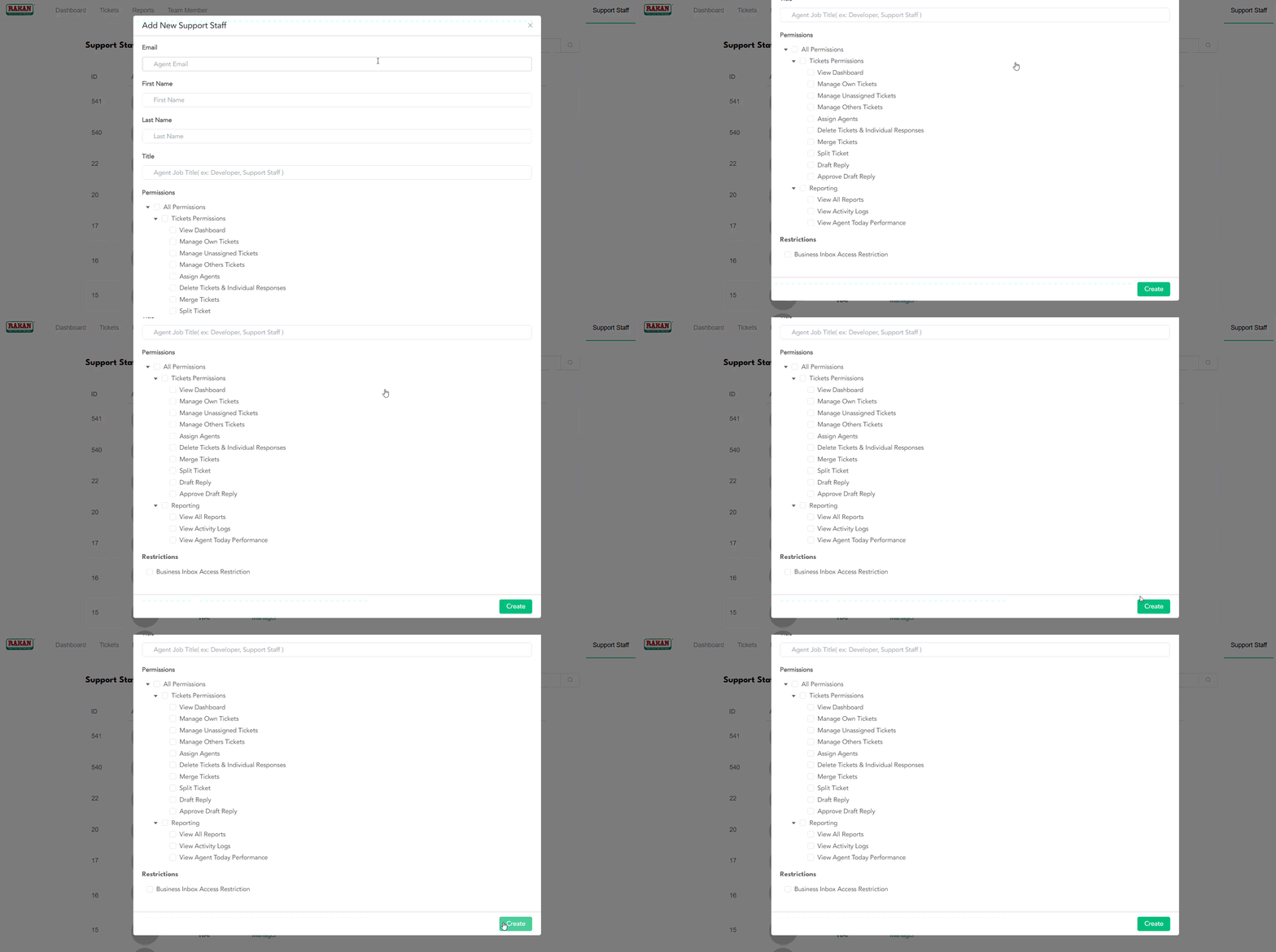
2. Add a New Support Staff
- On the Support Staff page, click + Add New.
- In the Add New Support Staff modal/page, fill in the following:
- Email – Agent’s login email.
- First Name & Last Name – Agent’s profile name.
- Title – Job title (e.g., “Support Staff KEV”, “Bakery Manager”).
- Permissions – Select the capabilities this agent should have (see reference in section 5).
Expand Tickets Permissions and Reporting to pick granular access (e.g., Manage Own Tickets, Assign Agents, Merge Tickets, etc.). - Restrictions → Business Inbox Access Restriction – If you want to limit an agent to specific inbox(es), enable this option and select the permitted inboxes. If disabled, the agent can access all inboxes they otherwise have permission to view.
- Click Save to create the support staff user.
Notes
• If you restrict to a business inbox, the agent will only see & work on tickets from that inbox.
• Choose permissions carefully. For example, Manage Others Tickets is powerful; grant it only to senior agents or leads.
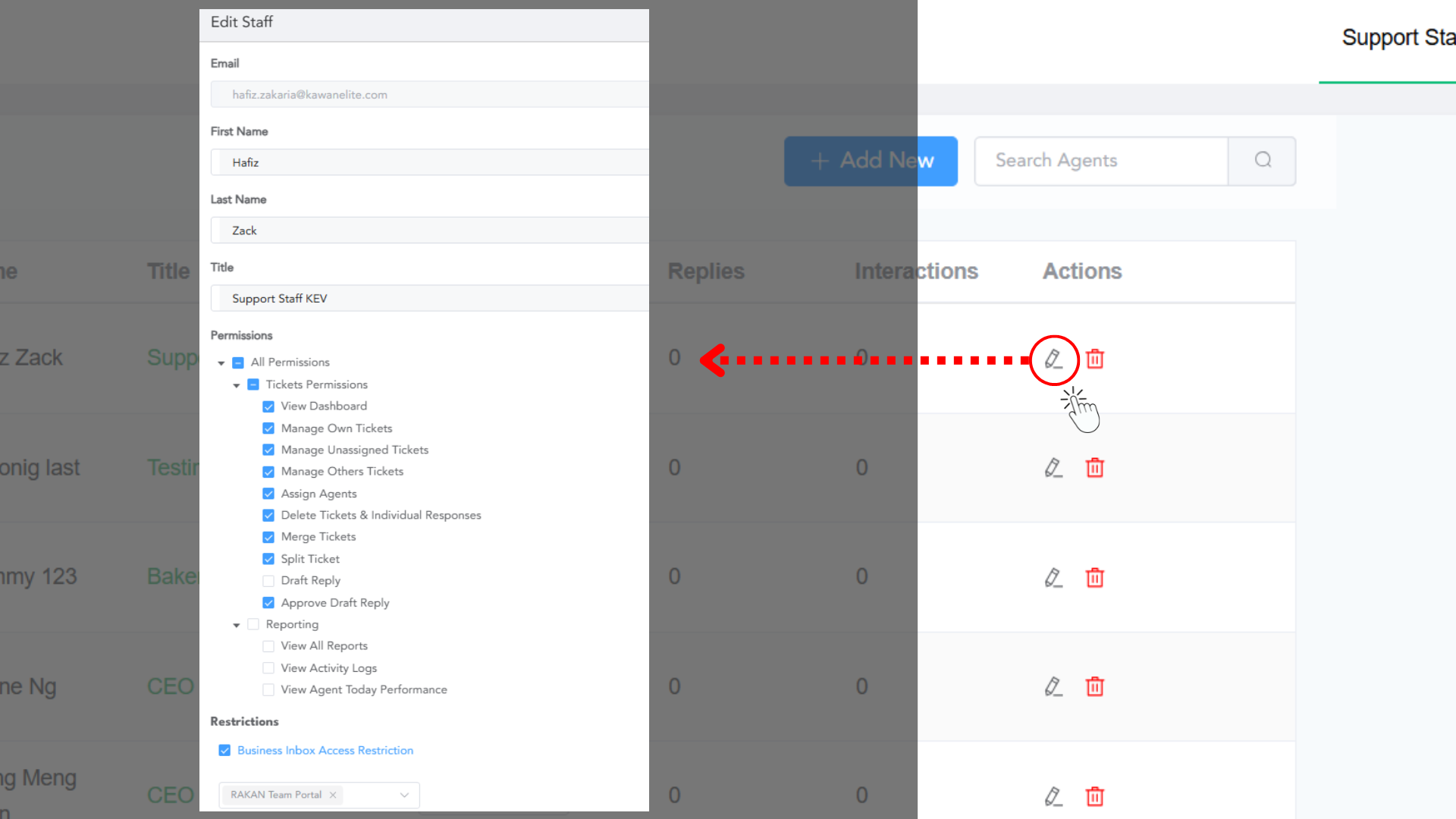
3. Edit an Existing Support Staff
- Open Support Staff and locate the agent.
- Click the Edit (pencil) icon in the Actions column.
- Update any fields:
- First/Last Name or Title.
- Permissions (add/remove capabilities as needed).
- Business Inbox Access Restriction (add/remove inbox limits).
- Click Save to apply changes.
Tip: When promoting an agent to a lead, add Manage Others Tickets, Assign Agents, and (optionally) Approve Draft Reply and reporting permissions.
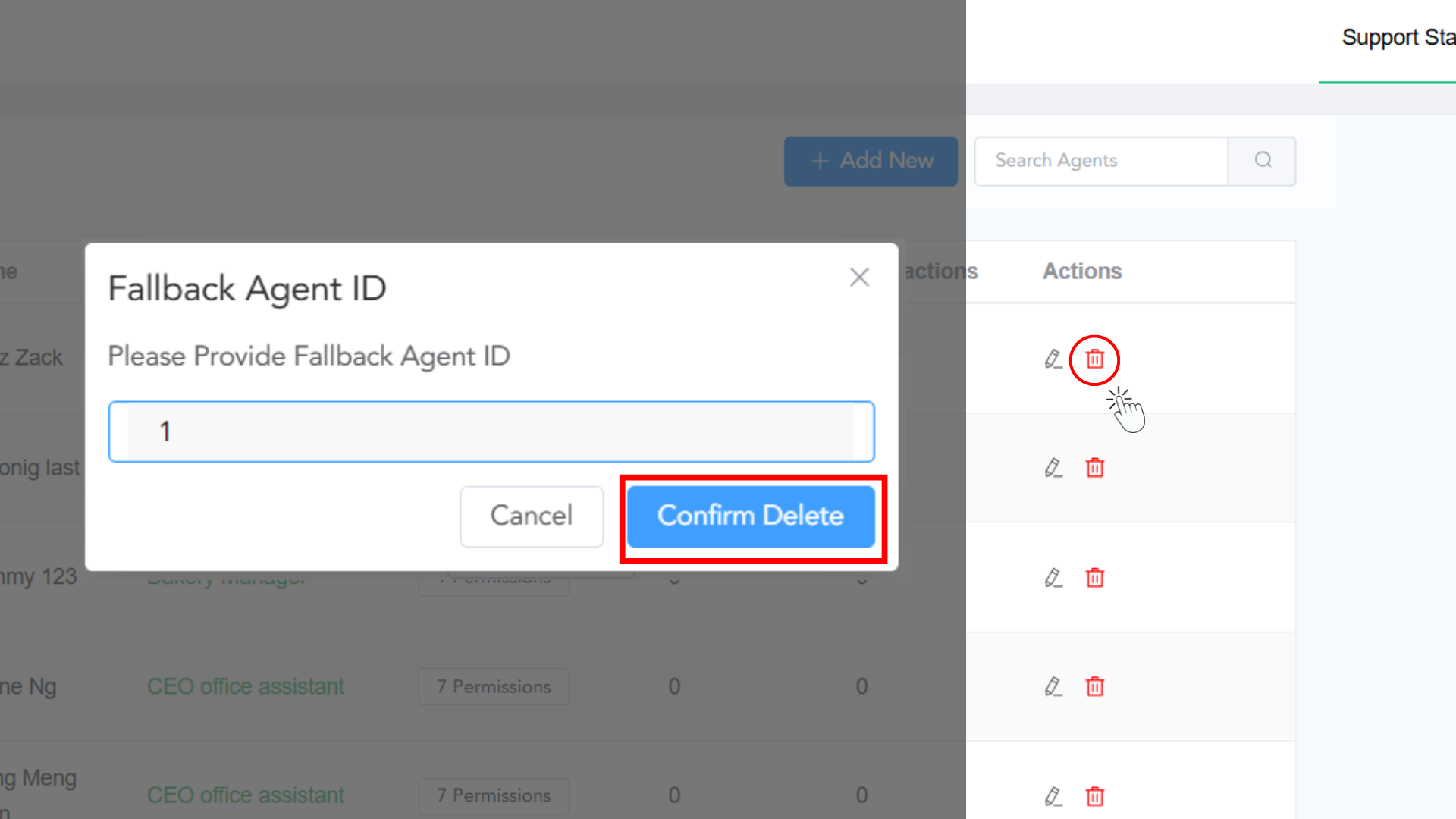
4. Remove (Delete) a Support Staff
- Open Support Staff and locate the agent.
- Click the Delete (trash) icon in the Actions column.
- Confirm the deletion.
Best Practice: Before deleting, reassign the agent’s open tickets to another agent or to the Unassigned queue to avoid orphaned work.
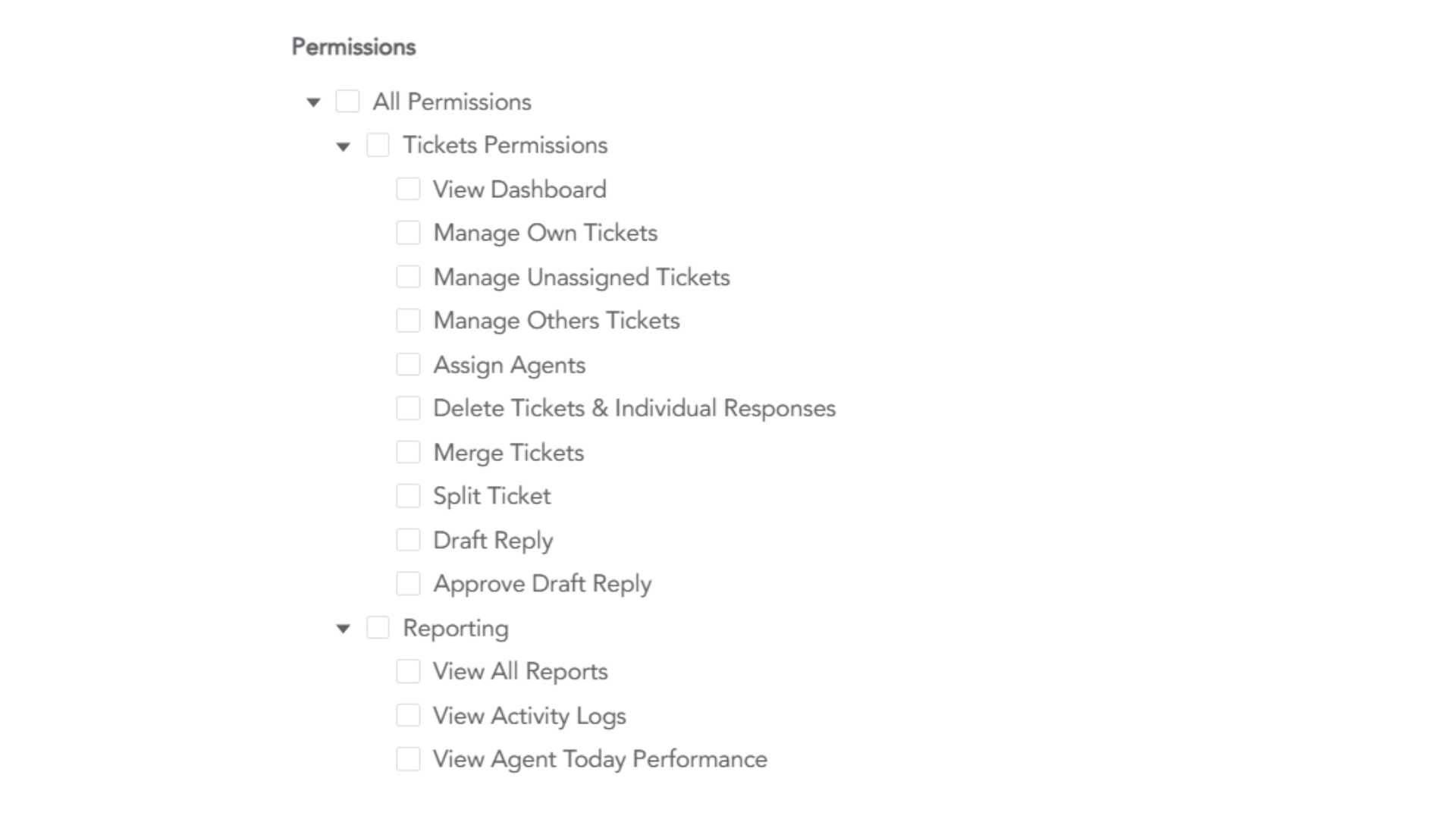
5. Permission Reference (What each option does)
Tickets Permissions
- View Dashboard – Allows access to the Ticket Management dashboard.
- Manage Own Tickets – Can view/reply/resolve tickets assigned to themselves.
- Manage Unassigned Tickets – Can pick up and work on tickets without an assignee.
- Manage Others Tickets – Can view and act on tickets assigned to other agents.
- Assign Agents – Can assign/reassign tickets to other agents.
- Delete Tickets & Individual Responses – Allows deleting tickets or specific replies (use with caution for audit integrity).
- Merge Tickets – Can merge duplicate or related tickets.
- Split Ticket – Can split a ticket thread into a new ticket when conversations diverge.
- Draft Reply – Can save replies as drafts.
- Approve Draft Reply – Can approve drafts saved by other agents (useful for QA or junior agent workflows).
Reporting
- View All Reports – Access to analytics and reports for ticket volumes, SLA, agent performance, etc.
- View Activity Logs – View audit logs of ticket/agent actions.
- View Agent Today Performance – Quick performance snapshot for today.
Restrictions
- Business Inbox Access Restriction – Limit an agent to specified inboxes. Useful for department‑specific teams .