
Overview
This guide provides administrators with step-by-step instructions on how to add, update, and delete users within the system through the Admin Dashboard. Following these steps ensures proper user setup and access management.
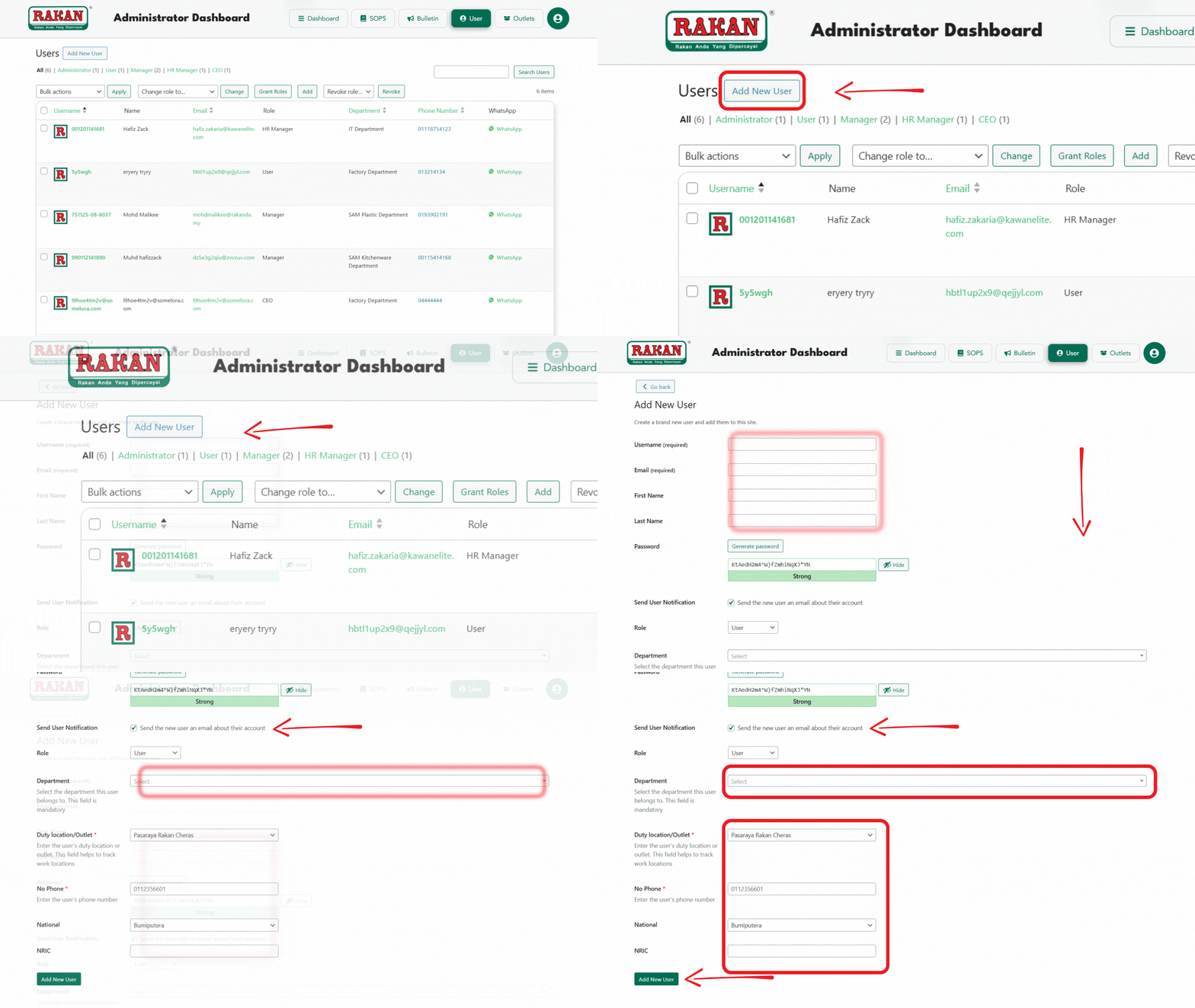
1. Accessing the User Management Page
- Log in to the Admin Dashboard.
- Navigate to the User section in the navigation bar.
- Click on the Add New User button to open the user creation form.
2. Adding a New User
2.1 Entering User Details
- IC/Passport (Required): Enter the team member’s IC/passport.
- Email Address (Required): Provide a valid email address for the user. This will be used for communication and notifications.
- First Name and Last Name (Optional): Add the user’s first and last name.
- Password (Required):
- Use the Generate Password button or manually create a strong password for the user.
- Ensure the password meets security requirements (e.g., at least 8 characters).
- Send User Notification (Optional): Check the box to send an email notification to the user about their account details.
2.2 Assigning User Role
- Choose the appropriate role for the user from the dropdown menu. Options include:
- Administrator
- CEO
- HR Manager
- Manager
- Executive
- User
2.3 Assigning Department and Duty Location(Required)
- Department (Required): Select the department the user belongs to. This is a mandatory field to help organize users.
- Duty Location/Outlet (Required): Choose the user’s duty location or outlet from the dropdown menu. This helps track work locations.
2.4 Entering Additional Information
- Phone Number (Optional): Add the user’s phone number for contact purposes.
- Nationality: Select the user’s nationality from the dropdown menu.
- NRIC (Optional): Enter the user’s National Registration Identity Card (NRIC) number if applicable.
2.5 Saving the User
- Click the Add New User button to complete the process.
- The new user will now appear in the user table.
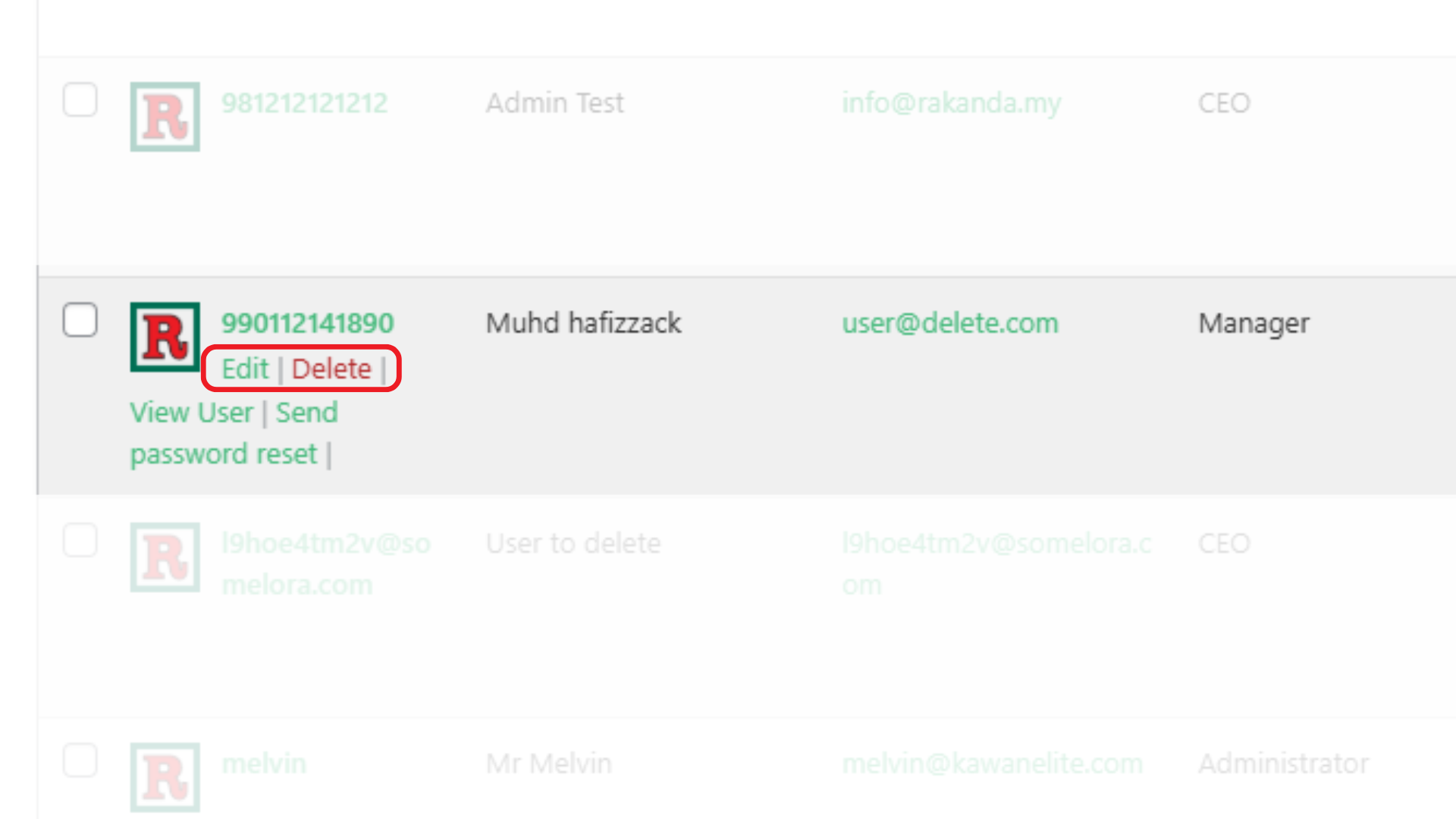
3. Updating an Existing User
- Navigate to the Users page in the admin menu.
- Locate the user you want to update using the search bar.
- Click Edit to modify user details.
- Update the required fields such as name, email, role, department, or duty location.
- If updating a password, ensure the new password meets security requirements.
- Click Update User to save the changes.
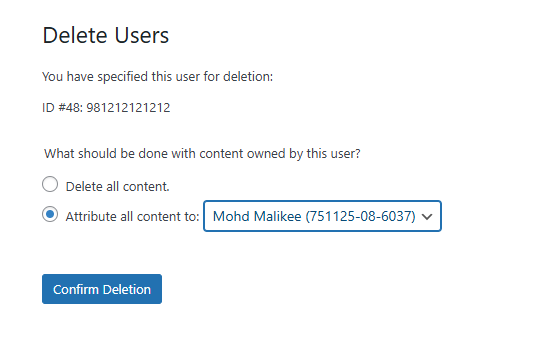
4. Deleting a User
- Click Delete next to their name.
- A confirmation message will appear—click Confirm Deletion to proceed.
- Choose whether to:
- Delete all content owned by the user.
- Attribute content to another user before deletion.
- The user will be permanently removed from the system
5. Role and Capability
There are 5 type of users role you can choose when creating or editing a users as tables below
| # | Permissions and Roles | 1. CEO | 2. HR Manager | 3. Manager | 4. Executive | 5.User Coordinator | 6. User (Frontliner) |
|---|---|---|---|---|---|---|---|
| 1 | View Dashboard | Yes | Yes | Yes | Yes | Yes | Yes |
| 2 | Edit Own Profile | Yes | Yes | Yes | Yes | Yes | Yes |
| 3 | View Other Team Profiles | Yes | Yes | Yes | Yes | Yes | Yes (Limited) |
| 4 | Access Company SOPs (Public) | Yes | Yes | Yes | Yes | Yes | Yes |
| 5 | Access Company SOPs (Department Internal) | Yes | Yes (Own Dept) | Yes (Own Dept) | Yes (Own Dept) | Yes(Own Dept) | Yes (Own Dept) |
| 6 | Create/Edit SOPs | Yes (All) | Yes (Own) | Yes (Own) | Yes (Own) | No | No |
| 7 | View Bulletins/Events | Yes | Yes | Yes | Yes | Yes | Yes |
| 8 | Create Announcements/Events | Yes | Yes | No | No | No | No |
| 9 | Manage (create,edit,delete) Users | Yes | Yes | No | No | Yes | No |
6. Key Points to Remember
- Required Fields: Username, Email Address, Password, Department, and Duty Location are mandatory fields. Ensure they are filled before saving.
- Send Notification: If you check the Send User Notification box, the user will receive an email with their account details, including the username and login link.
- Role Assignment: Assigning the correct role is crucial to ensure the user has appropriate permissions.
- Valid Email Address: The email address provided must be valid to ensure communication and account activation.
- Updating Users: User details can be modified at any time by accessing the user profile in the admin panel.
- Deleting Users: Once deleted, users cannot be restored unless a backup system is in place.
By following this guide, administrators can efficiently manage user accounts within the system, ensuring proper setup, updates, and deletion processes.